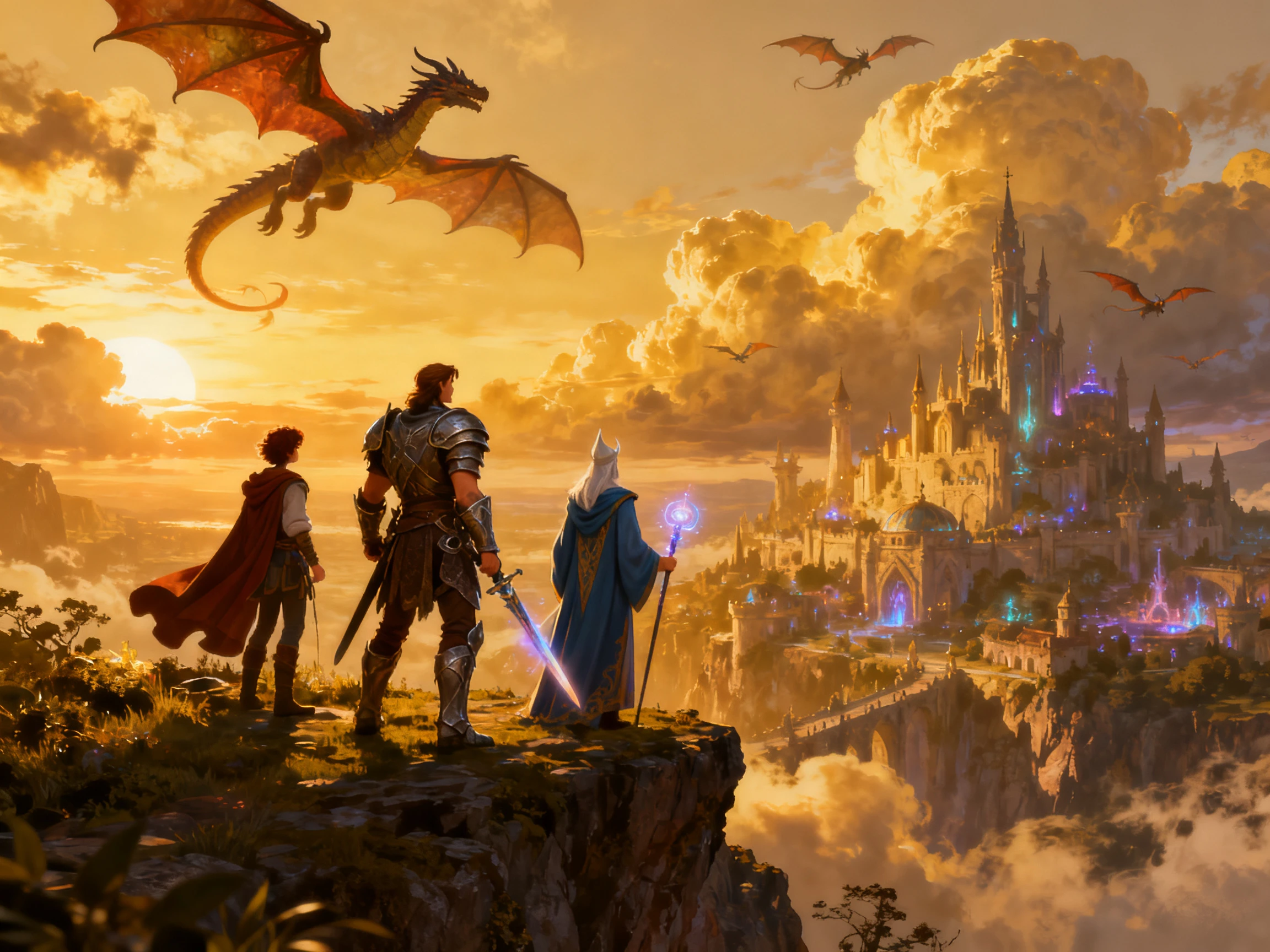
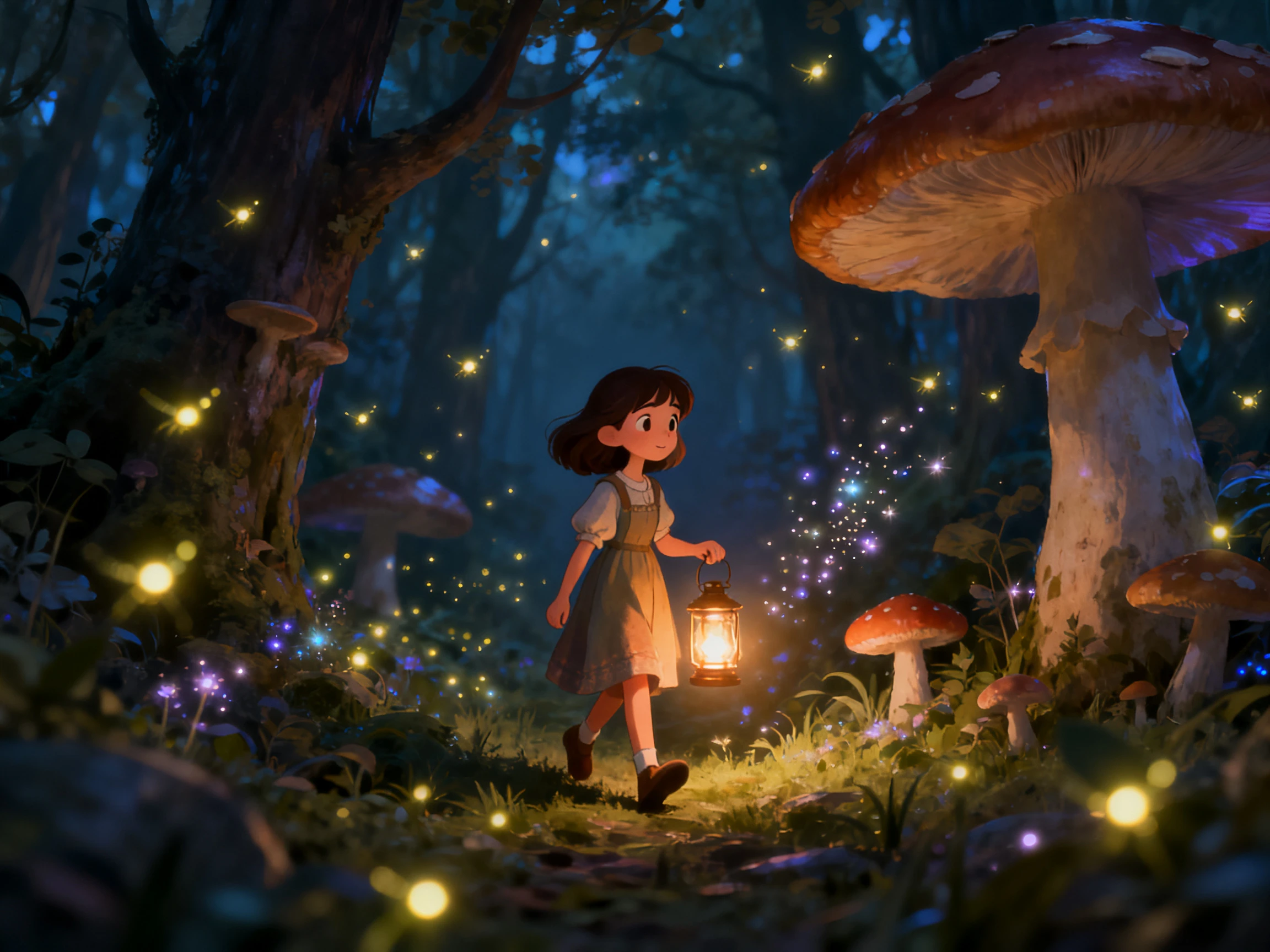
Create videos with Magiclight AI while handling writing, design, animation, and voice in one place. Start from your idea with no software to install and no editing skills required.
Explore the Features of the MagiclightAI Video Generator Skill
Take an idea from script to scene with the AI video generator skill in Magiclight AI. Write the dialogue, choose who appears, arrange each scene, and turn the full concept into video.
6 Formats, Same Simple Workflow
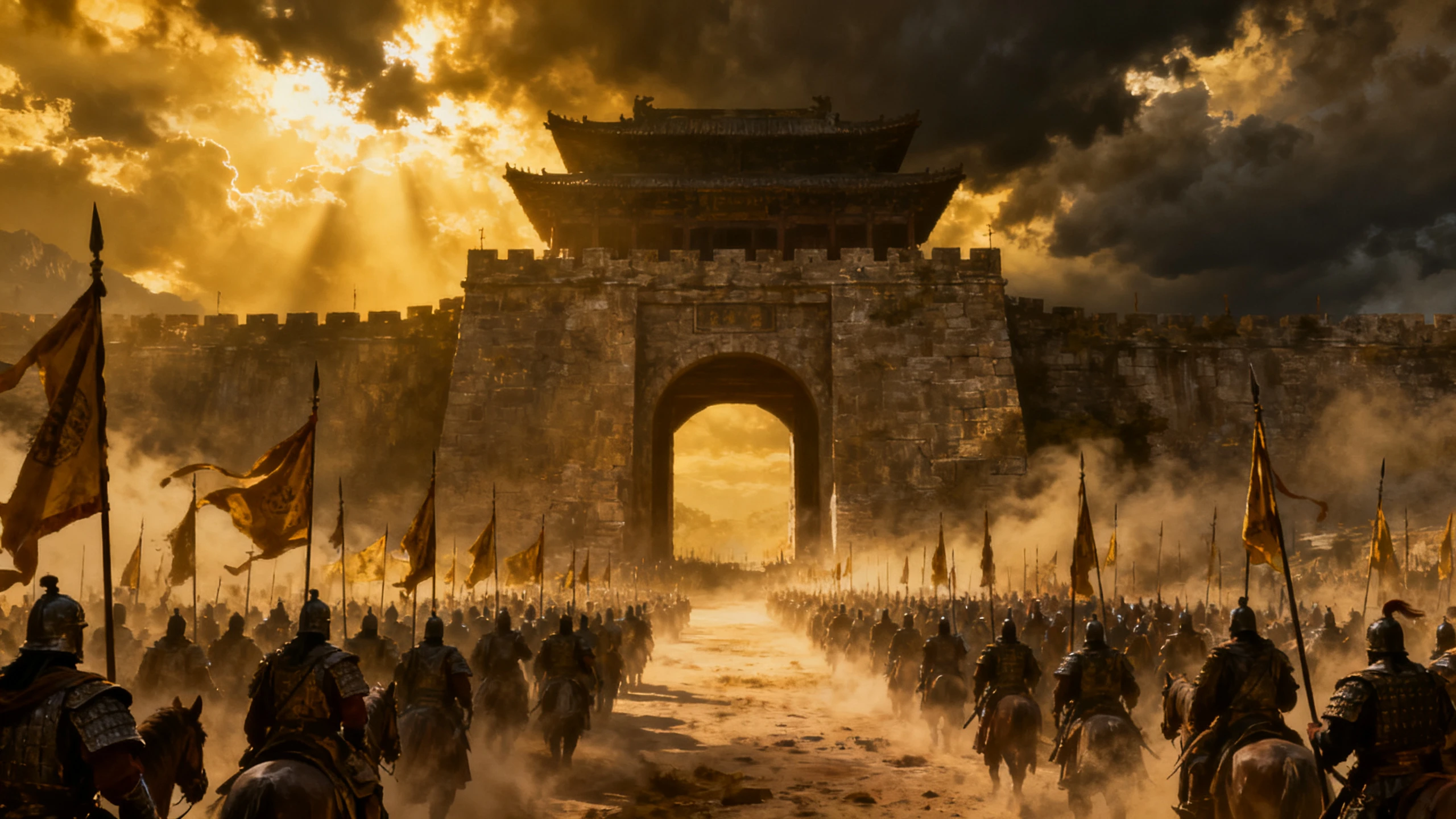
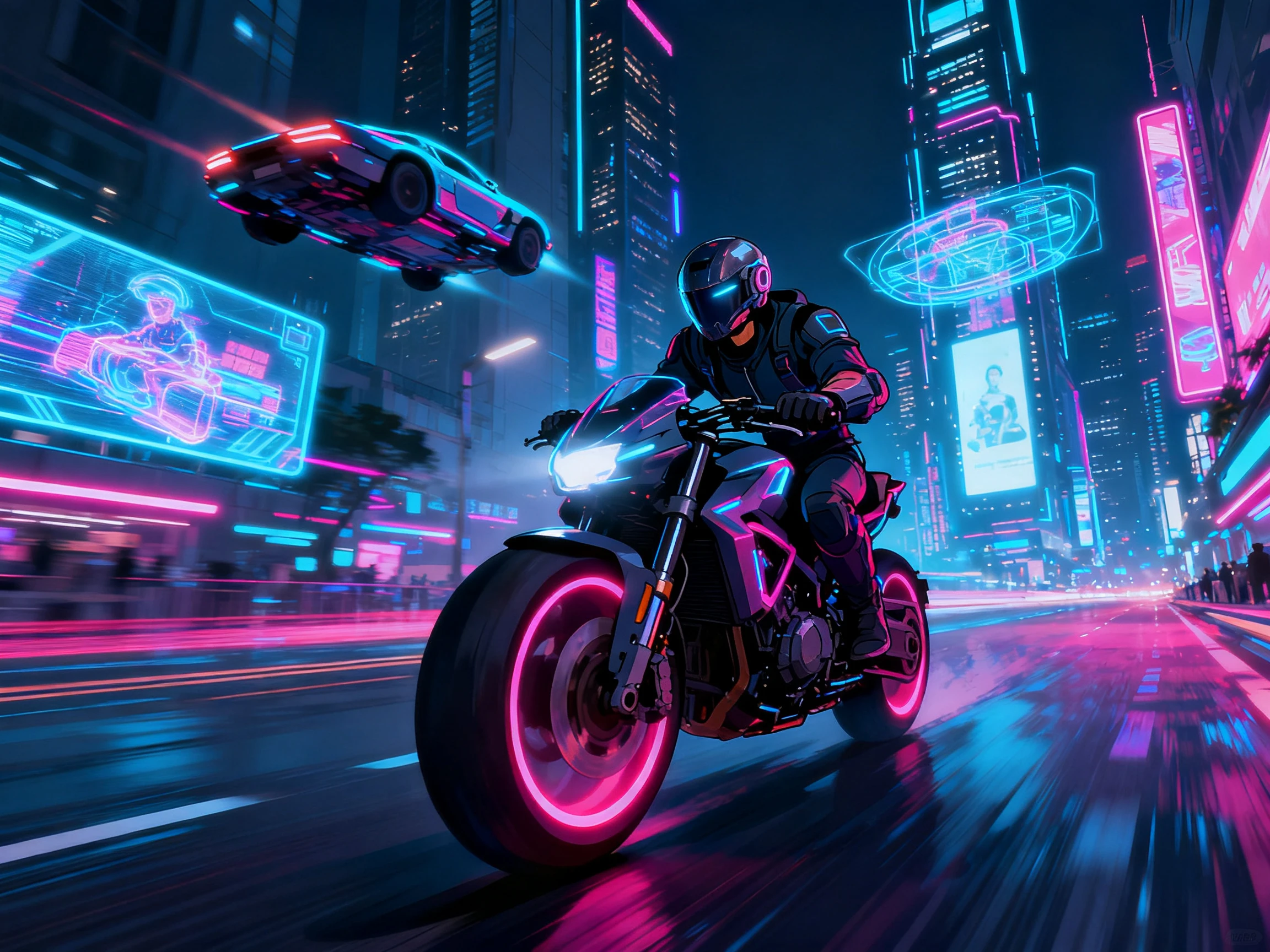
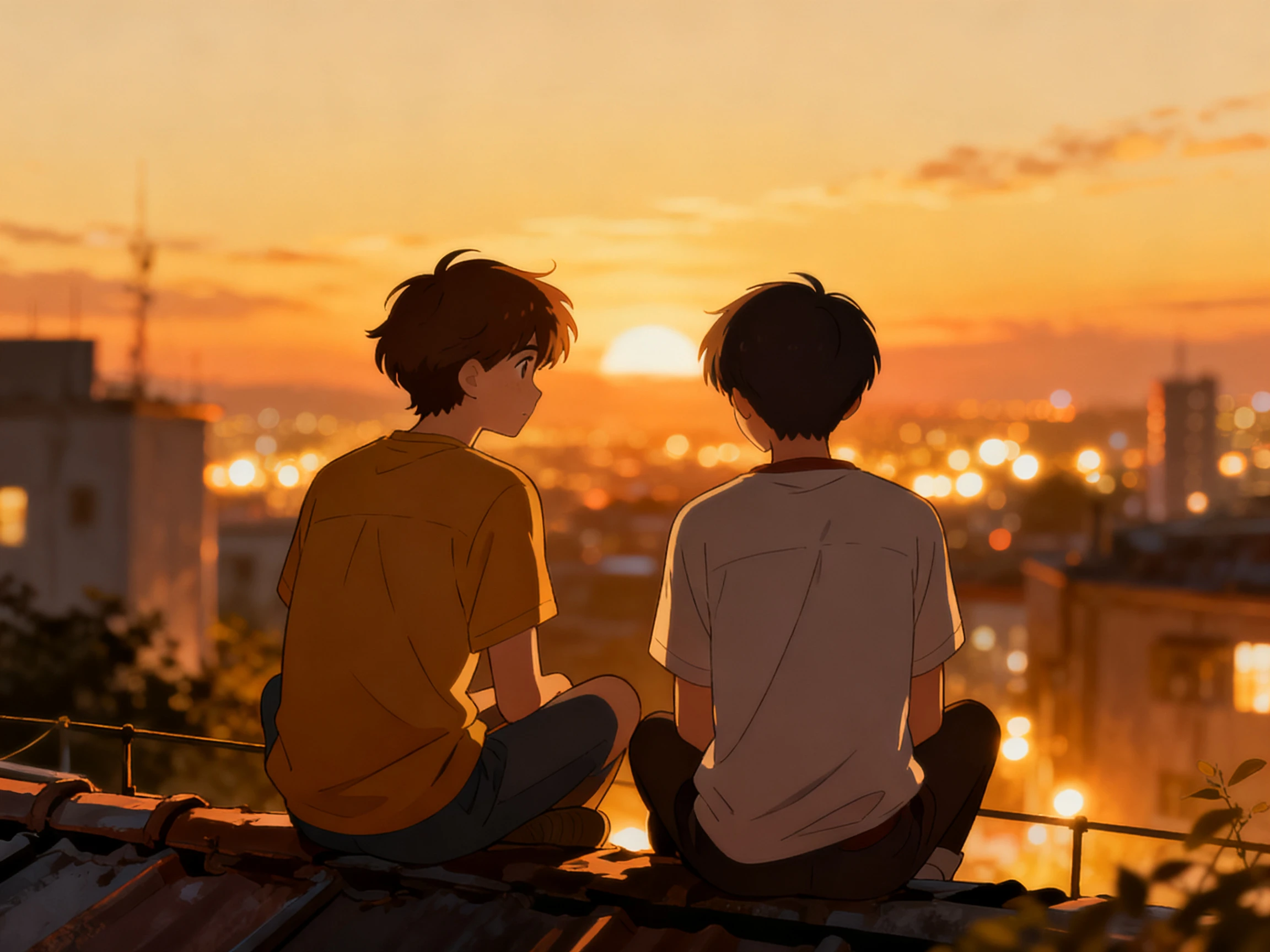
From kids’ stories to product explainers, the workflow stays simple. Magiclight AI supports six formats in one streamlined interface, so you can create different types of videos without learning a new process each time.
Pick from 19 AI models in Magiclight AI to match the video you want to make. Choose Kling 3.0 for dynamic motion or Veo 3.1 for cinematic scenes, without changing your workflow between projects.
Style is a choice rather than a technique. Pick any one of 52 looks spread over 4 model groups and every scene inherits it, so nothing here depends on knowing how to draw.
Casting works the same way on every single project. Take a voice from the 37‑voice list, save the character, and both come back on the next video without being set up again.
Who Can Use the Magiclight AI Video Generator Skill
Handle more of the video process yourself with the AI video generator skill, whether you are a freelancer, career changer, creator, or small team working without a full production crew.
For Video Editors
Learn one set of controls that covers all 6 of the formats.
Create your first video without buying any software at all.
Move from a written script through to export in one workflow.
For Freelancers
Offer video work without hiring an animator or an editor.
Keep each client's cast saved between one project and the next.
Bill the work out commercially from any of the paid tiers.
For Small Teams
Give the same 52 looks to anyone on the team who is free.
Divide one 12,000‑character script up between 2 people.
Fix one scene without anybody remaking the whole video.
For Students
Create portfolio videos in 11 languages with Magiclight AI.
Give every piece its own voice out of the 37 that are offered.
Export at 1080p for wherever the work is going to be shown.
How to Use Magiclight AI Video Generator Skill For Free
Learn the AI video generator skill in 4 steps with Magiclight AI. Add your script, choose a style, cast the characters, then adjust each scene before generating the video.
1.
Step 1. Add Your Script
Paste a script of up to 12,000 characters into Magiclight AI. Add the topic, audience, tone, and other details that should guide the video.
2.
Step 2. Choose Your Video Characters
After setting the scenes for the video, choose the character for your video. It can be from an AI‑generated option or an existing character.
3.
Step 3. Set the Scenes and Voice
Open Nano Storyboard to adjust expressions, camera movement, and up to 50 pose options. Adjust voiceover and animate your video.
4.
Step 4. Review and Export
Add music and subtitles, check the finished scenes, and export your Magiclight AI video in 720p or 1080p for the platform where you plan to publish it.
What Users Say About the MagiclightAI Video Generator Skill
Ayesha Karim
Freelance Writer
I write scripts and always had to send clients elsewhere for the video part. With Magiclight AI, I could offer both without bringing another person into the project.
Jonas Petersen
Office Manager
Nobody in our office does video, and there is no budget for an agency. Learning one workflow through Magiclight AI was far more practical than figuring out several separate tools.
Mariana Lopes
Design Student
My portfolio needed more range, and I only had a few weeks to get it ready. I used Magiclight AI to try different video formats without learning a separate process for each one.
Tom Ashford
Recruitment Consultant
I learned it on a job advert and then used the same steps for our training clips. Nothing about Magiclight AI changed between the two of them.
Yes. The skill is in making the right decisions. Magiclight AI handles the visuals, timing, and export, while you decide what the video needs and which scenes require changes.
How long does the skill take to pick up?
One project, for most people. The controls in Magiclight AI do not change between formats, so the second video is mostly a matter of typing rather than working anything out again.
Do I need to be good at writing scripts?
A rough idea will do to begin with. Magiclight AI drafts through its story models and returns a scene breakdown you can correct, so the writing improves in the editing rather than before it.
Is it free to practice on at the start?
Credits arrive at sign‑up, and no card gets asked for. They cover a first project end to end inside the Magiclight AI video generator skill, enough to tell whether the workflow suits how you work.
Does the skill transfer to other tools?
Yes, the decision‑making does. What you learn about pacing, scenes, and visual choices can transfer to other tools, while Magiclight AI has its own controls and workflow.
What is still hard once you have learned it?
Deciding what to make can still be difficult. The production side becomes easier with Magiclight AI, while the idea, writing, scene choices, and final decisions remain yours.
Create Unique Videos With Magiclight AI Video Generator Skill
Different videos used to require different skills. Magiclight AI brings them all into one workflow, so you can apply the same skills across every project.