Top Features of Magiclight AI Video to Video Generator
Select a visual style for your clip and let Magiclight AI video-to-video generator handle the changes. Explore the features to get the appearance you want for your footage.
Upload a clip and tell Magiclight AI how it should look. Change the footage into animated art while the original movement stays in place. No animation of each frame is required.
Try Video to Video AI for Free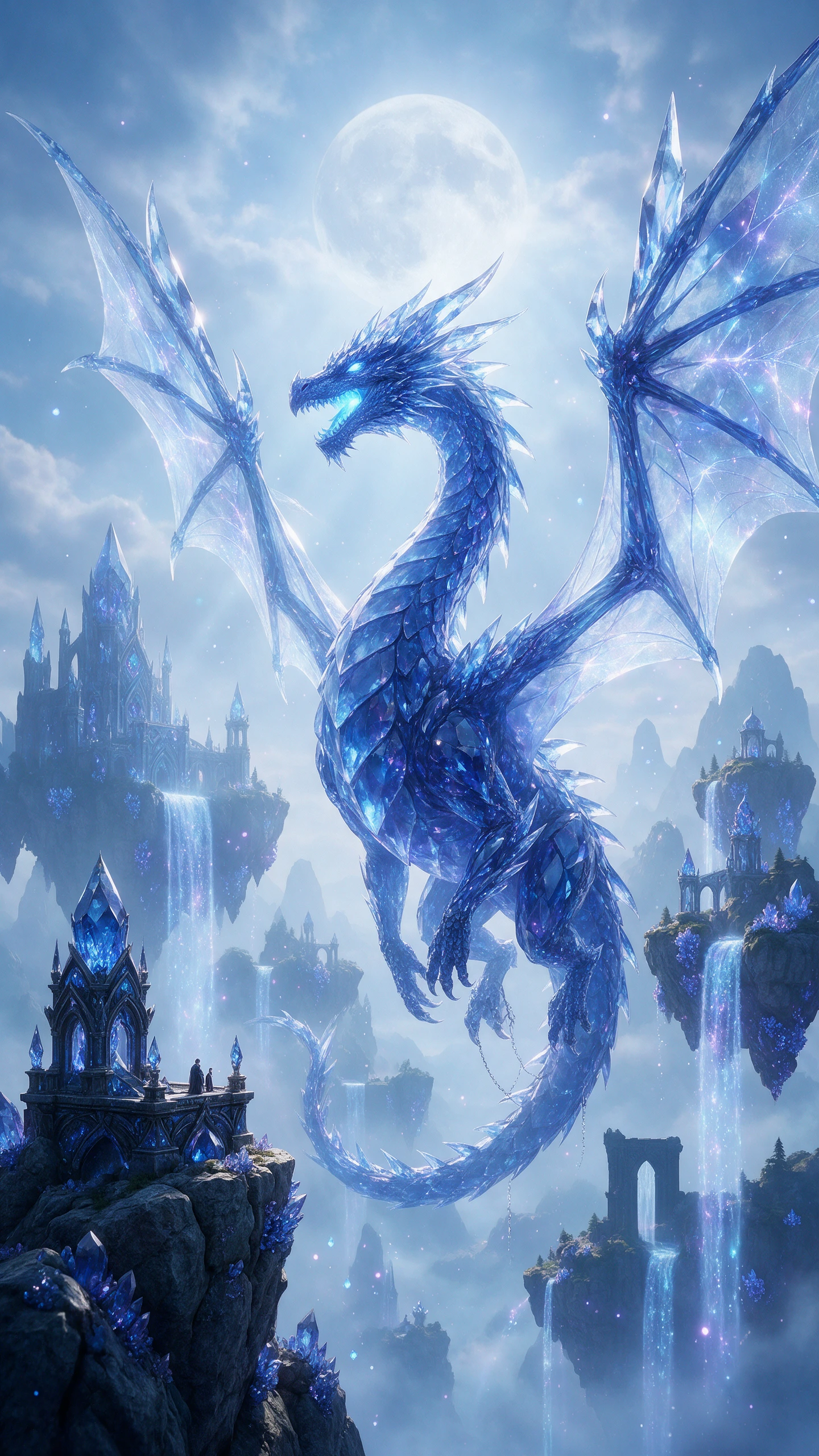
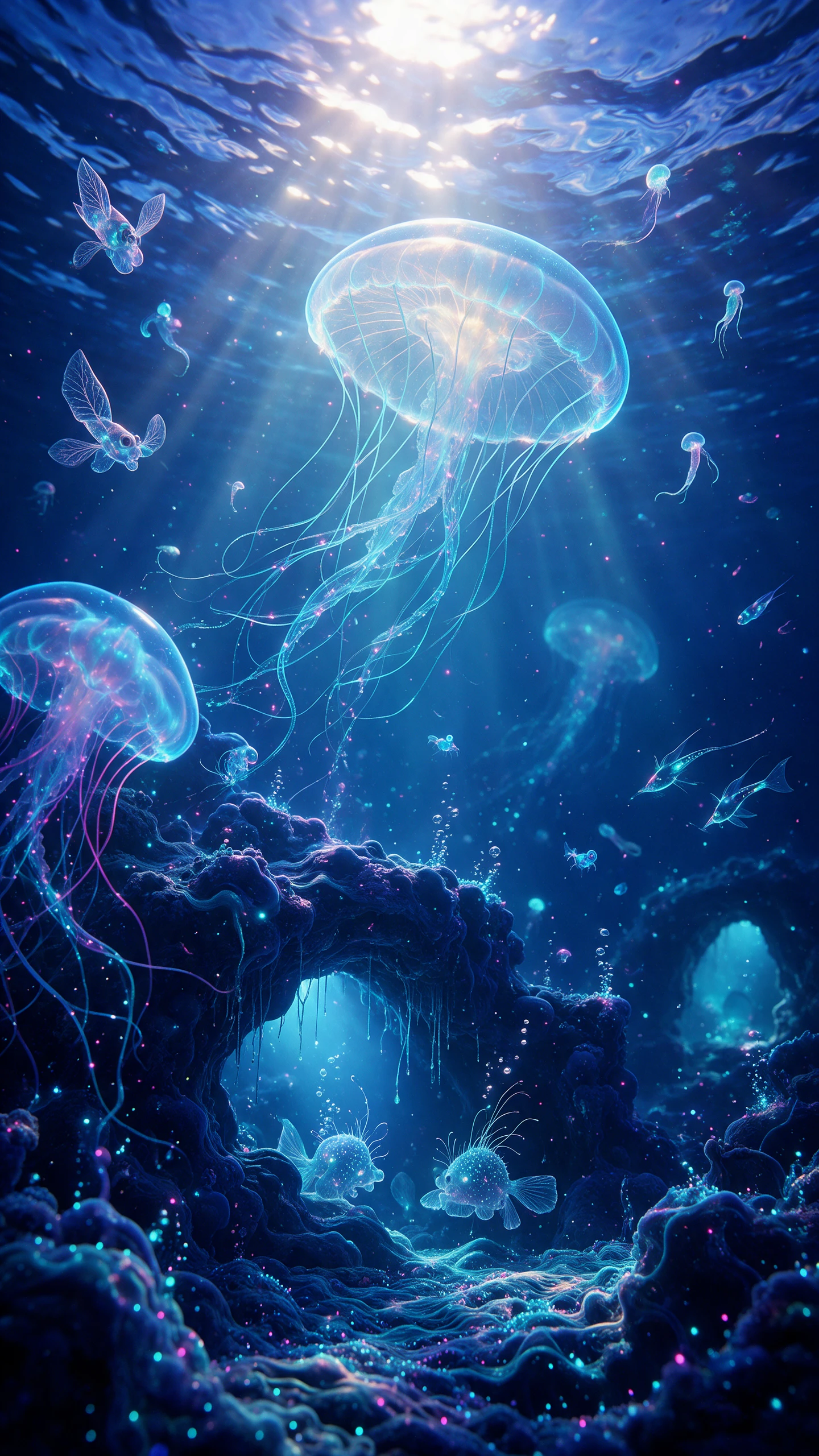
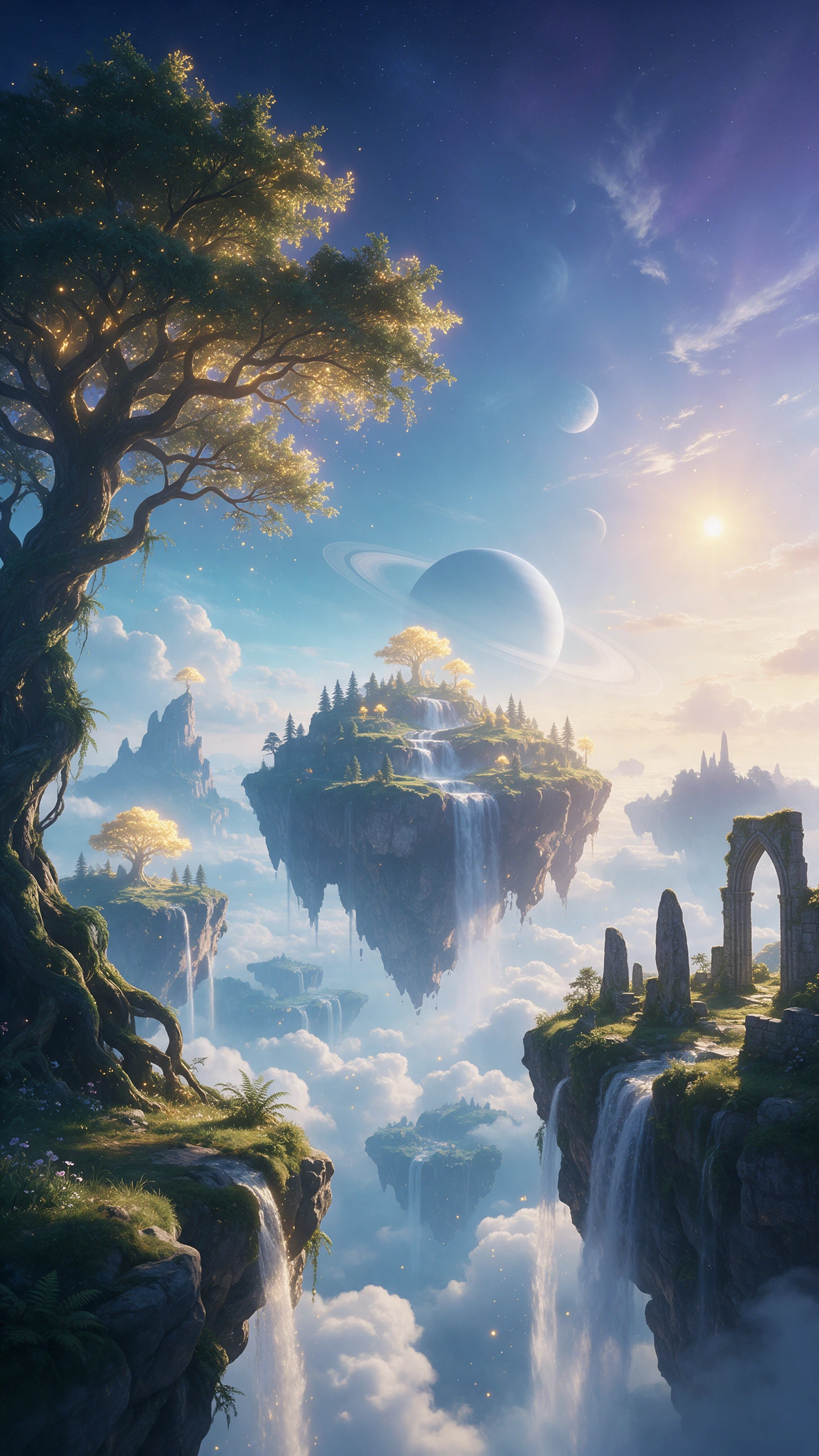
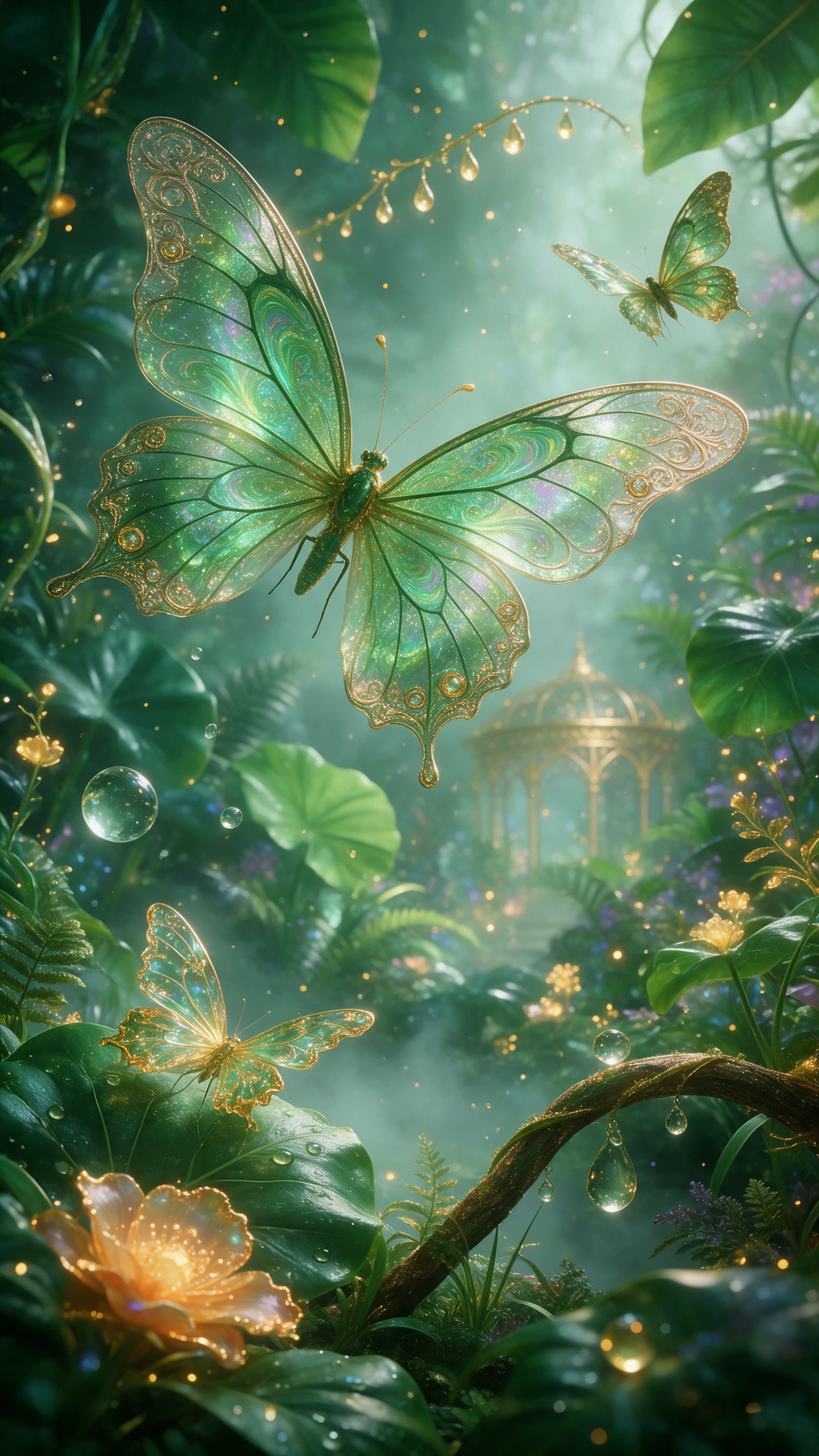
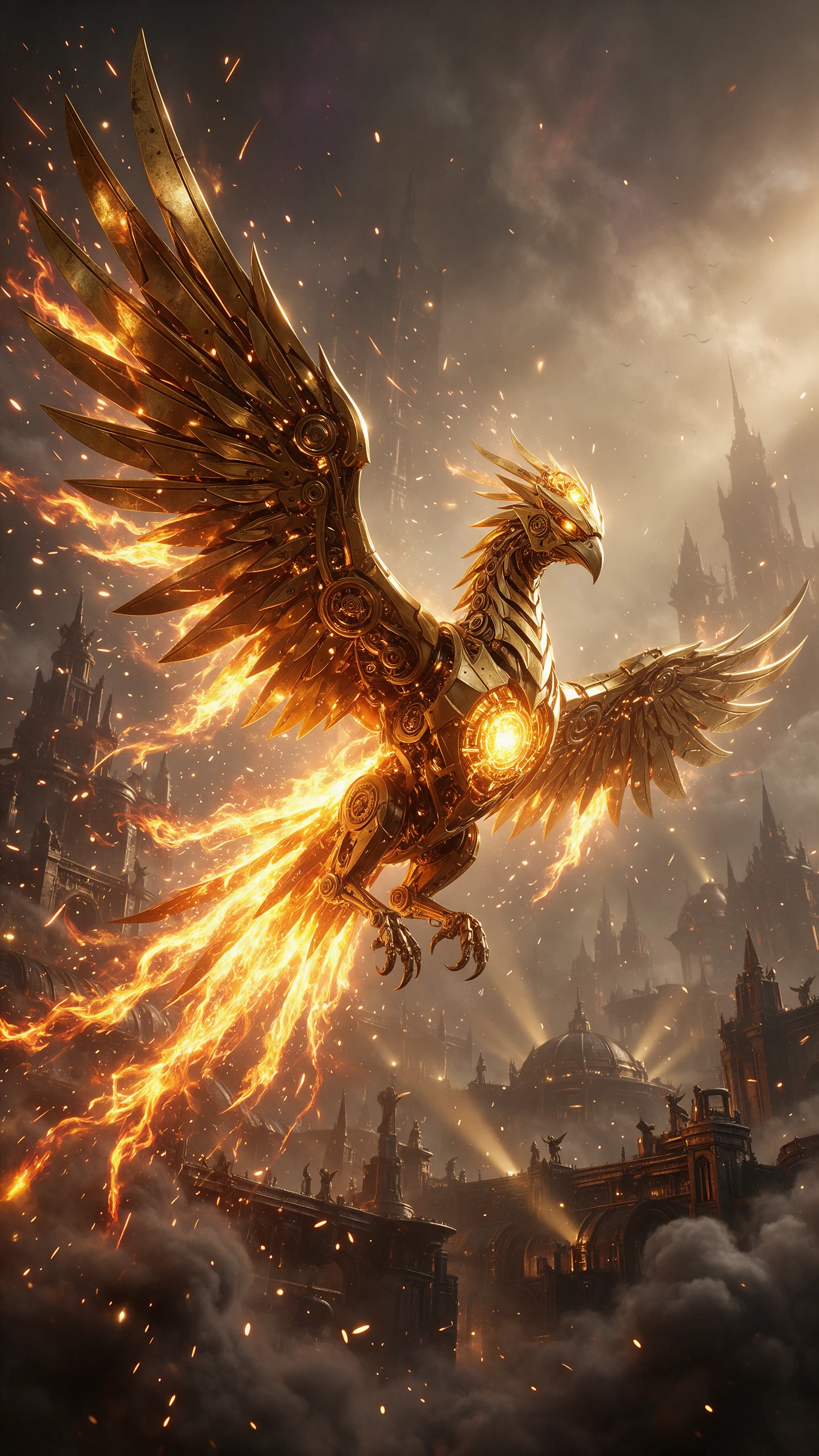
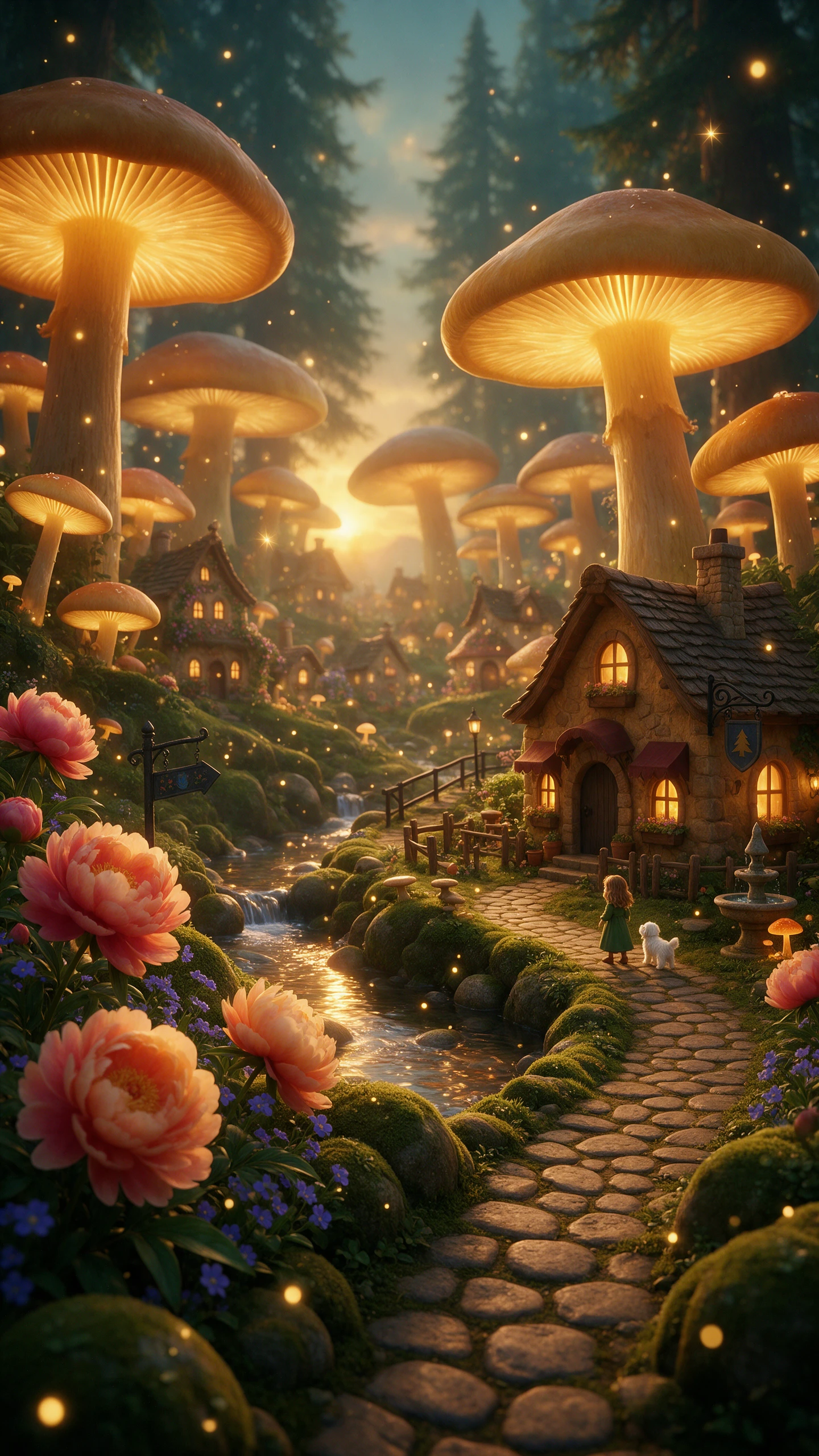
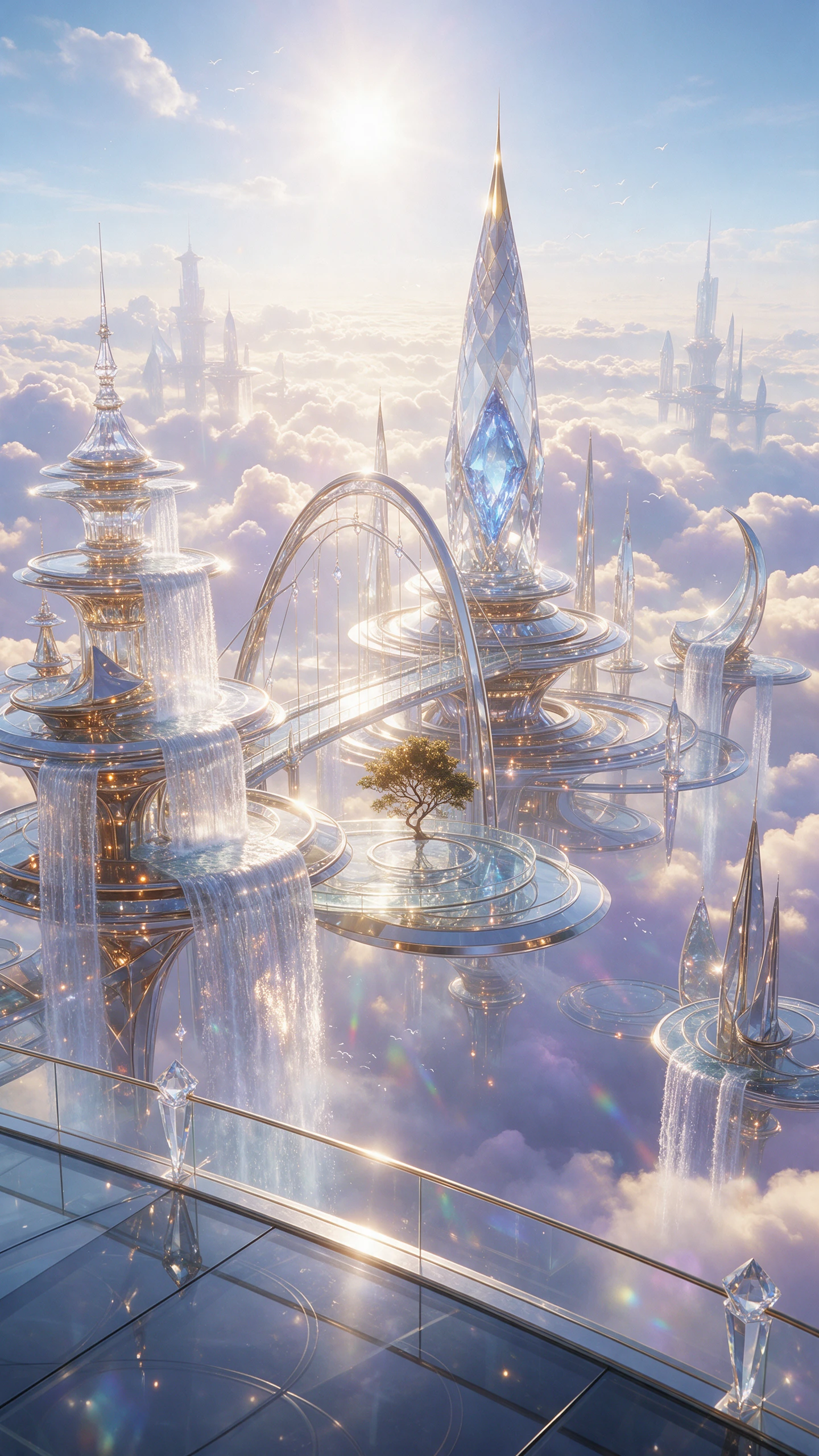
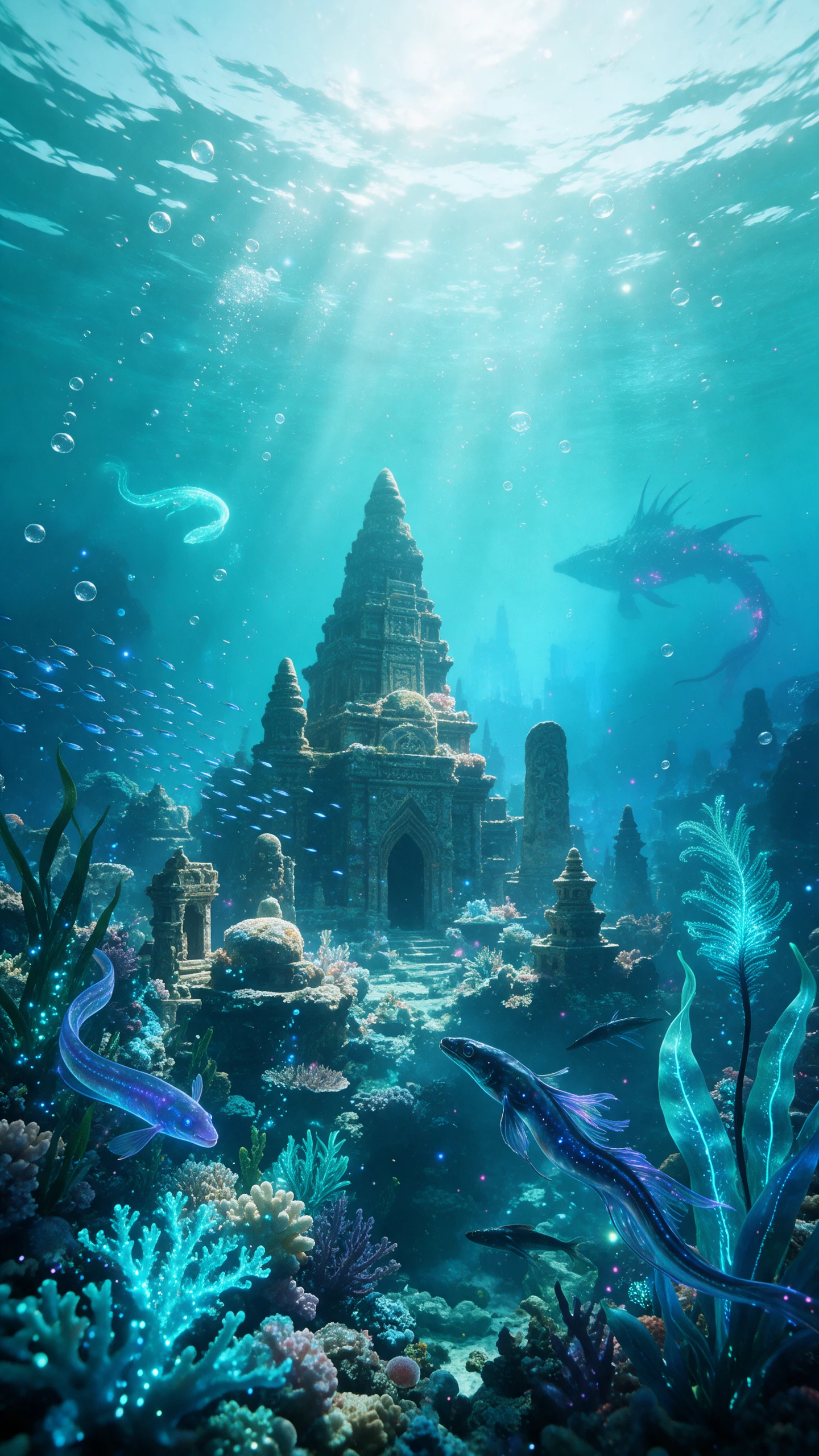
Select a visual style for your clip and let Magiclight AI video-to-video generator handle the changes. Explore the features to get the appearance you want for your footage.

Magiclight AI tracks the movement in your clip as it changes the visual style. You can give your footage a new look and keep the same actions from the original video without manual edits to every frame.
Enter a description of 1500 characters in Magiclight AI to explain the motion for new video. You can describe how the camera should move and add details about the action before you generate the clip.
Upload a video of 30 seconds to Magiclight AI and apply a new style. You can keep the full video together and change its appearance without cutting it into smaller parts before you start.
Magiclight AI offers 9:16 and 16:9 aspect ratios for your video. Choose 9:16 for vertical Reels on your phone and select 16:9 for a wider video that fits YouTube screens.


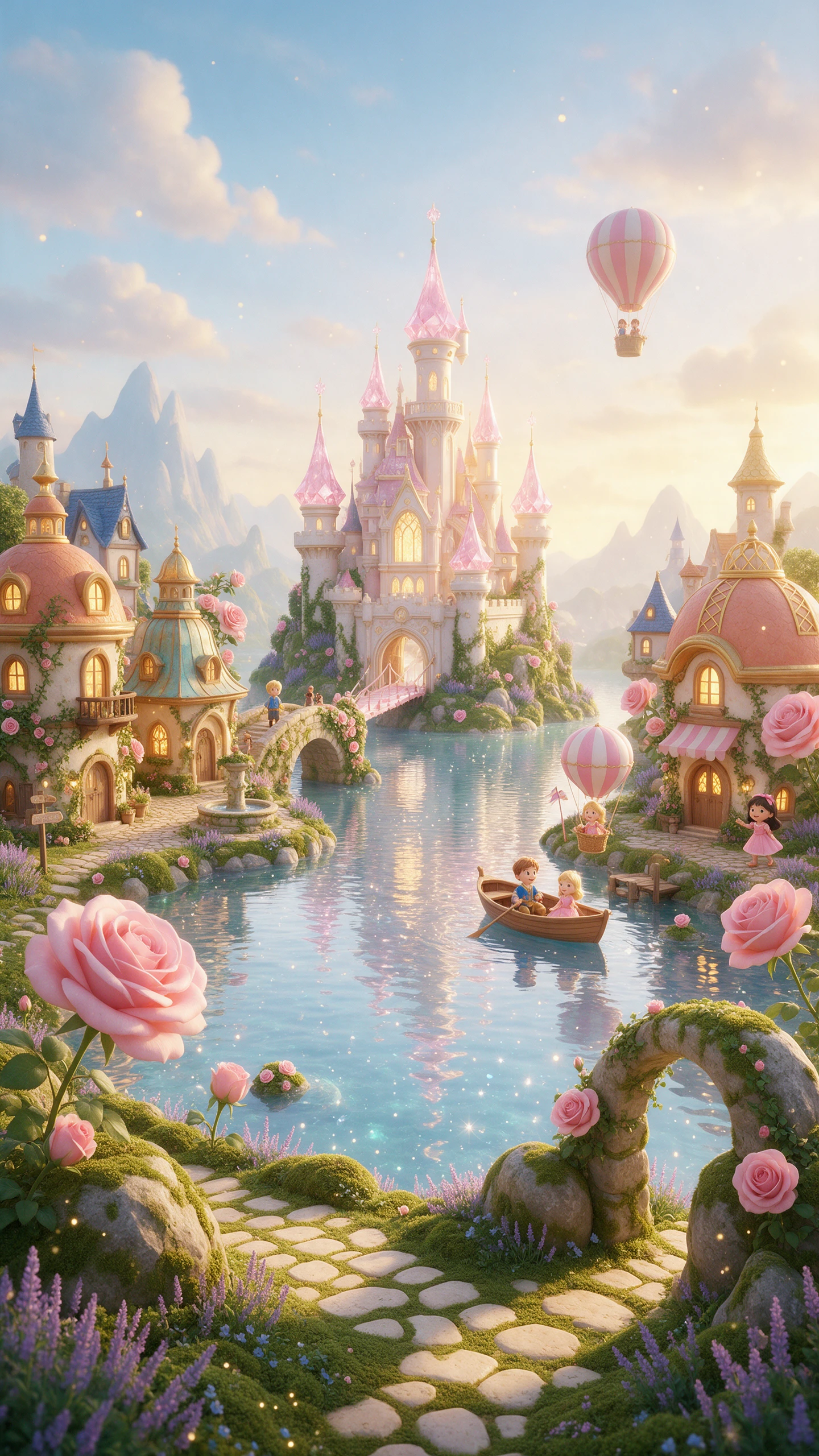
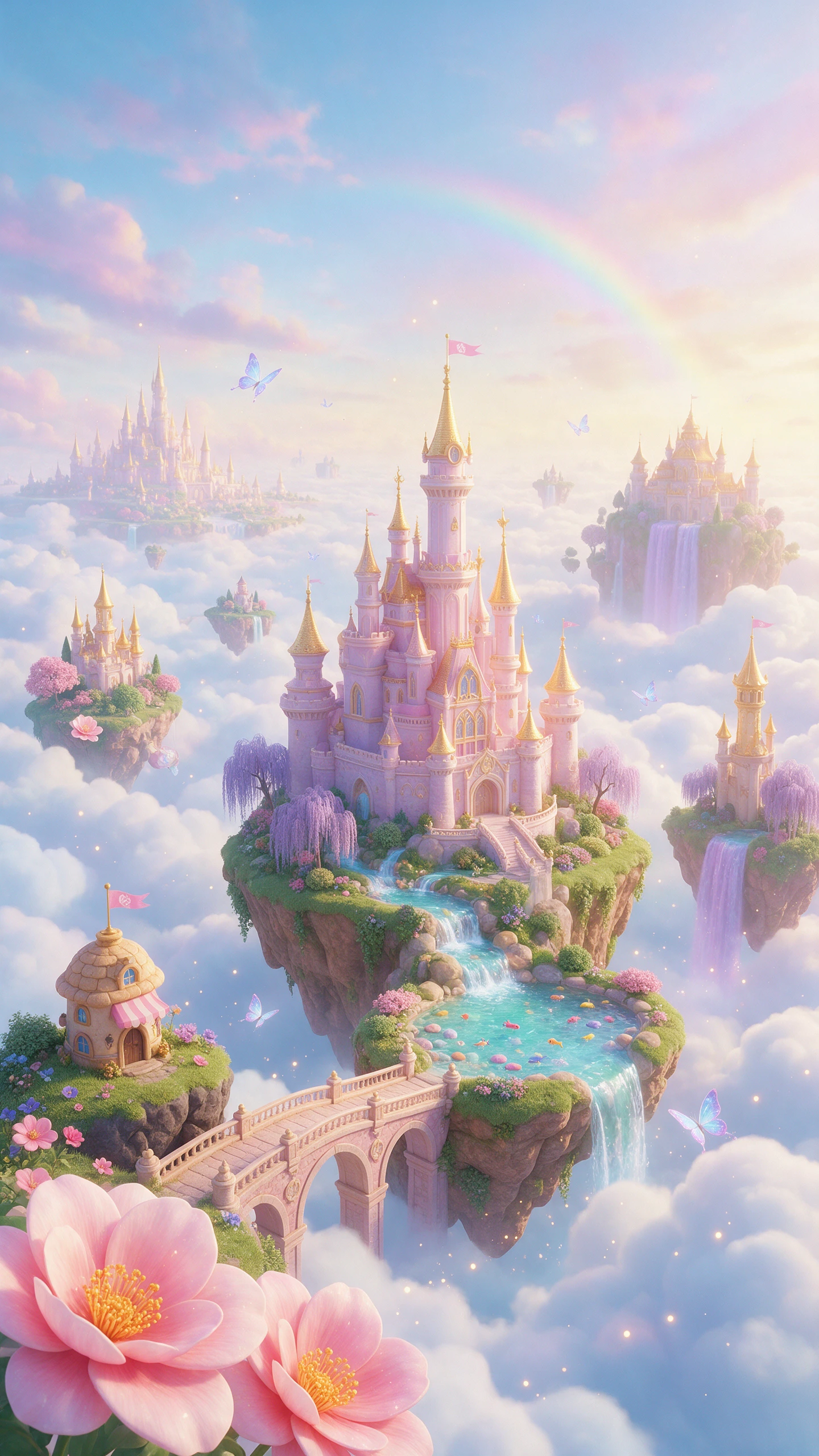
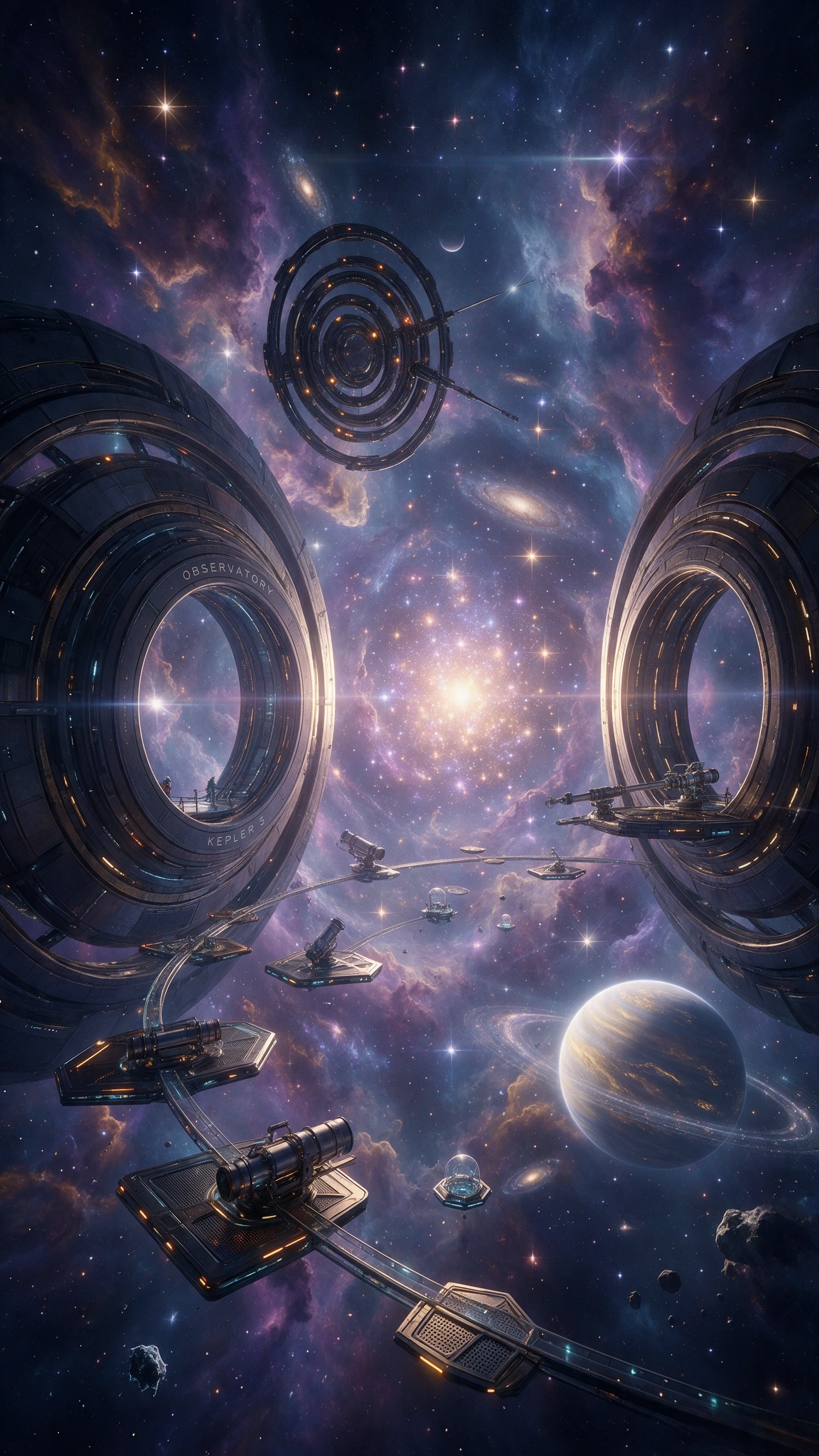
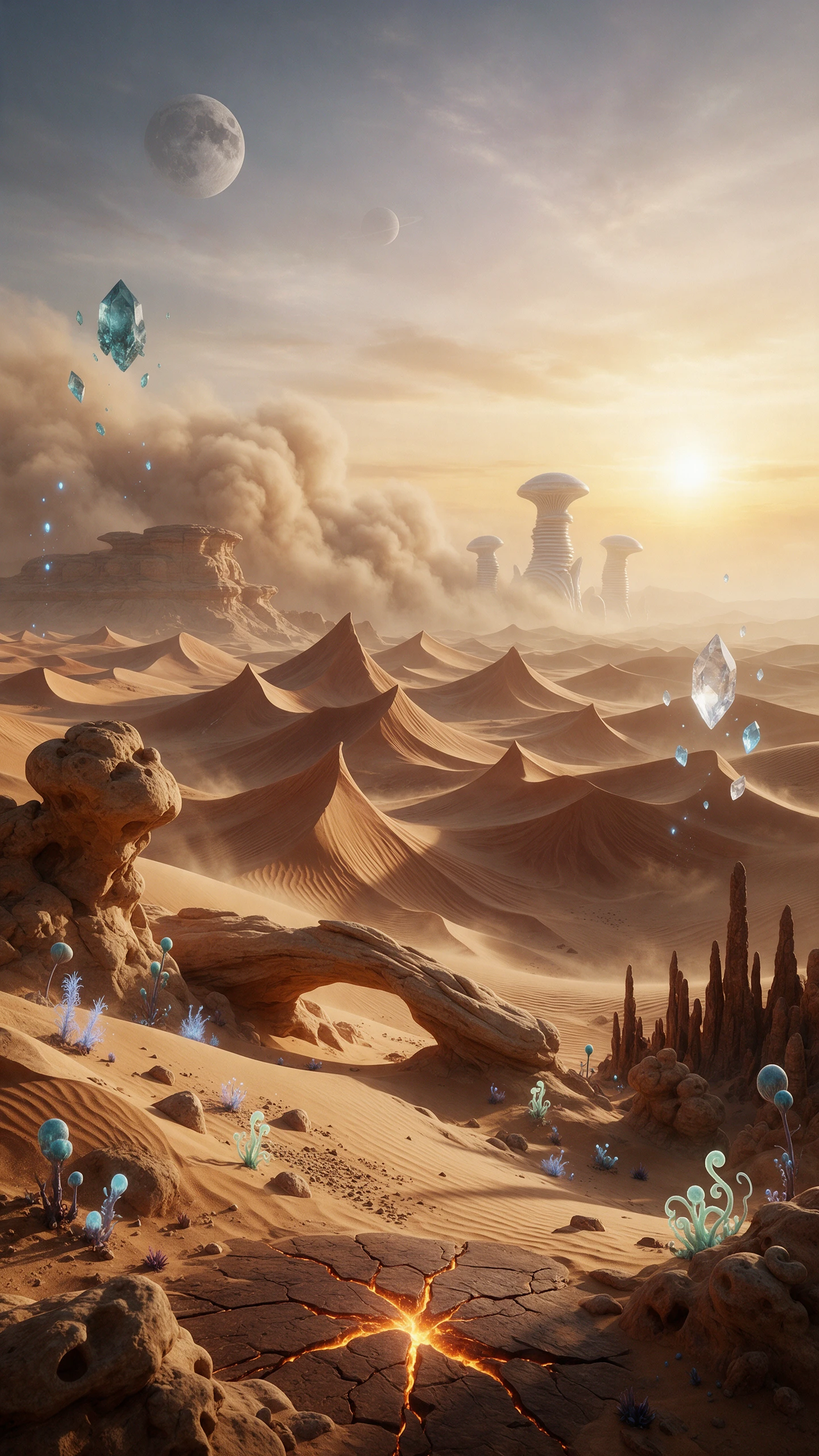
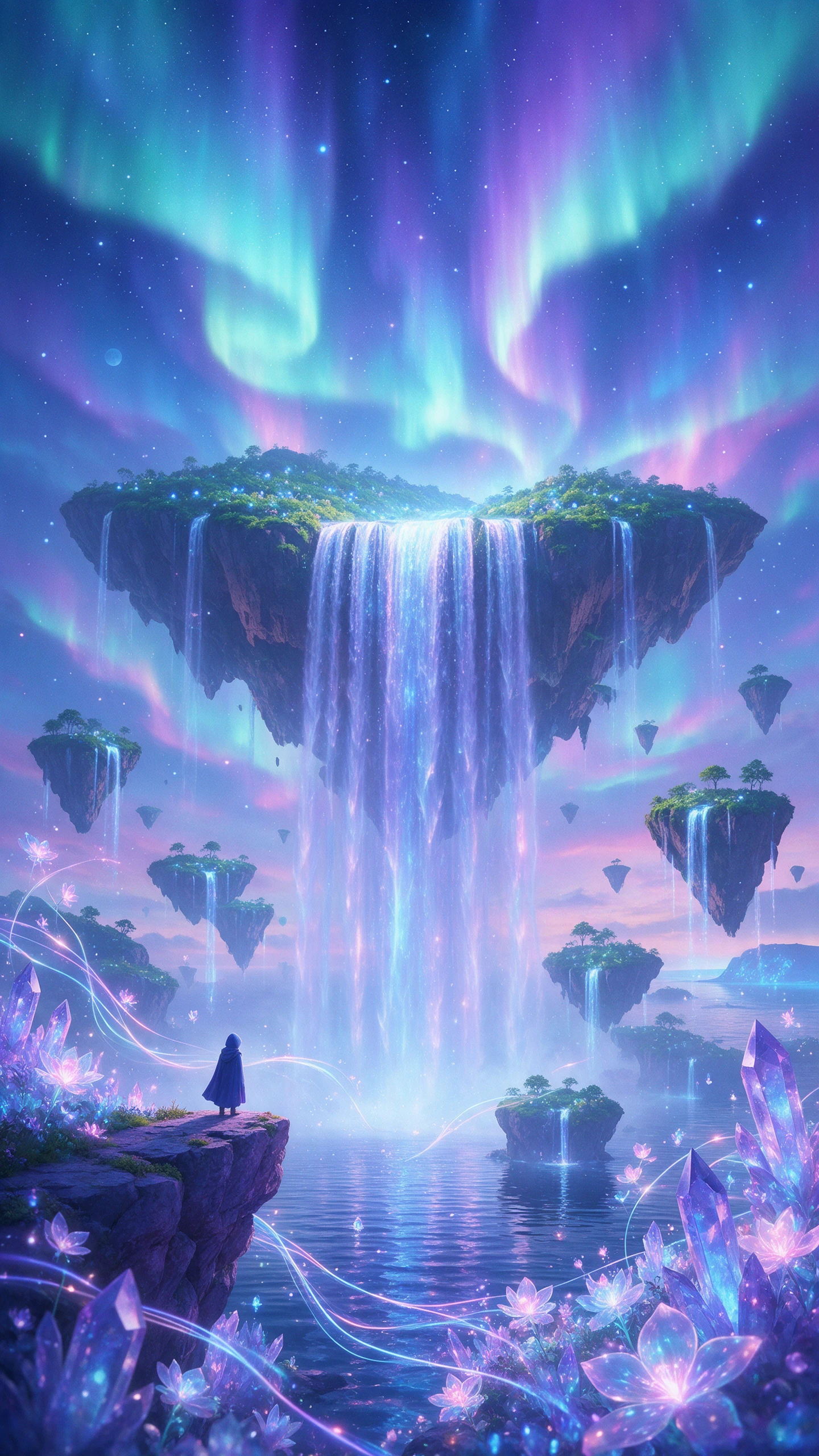
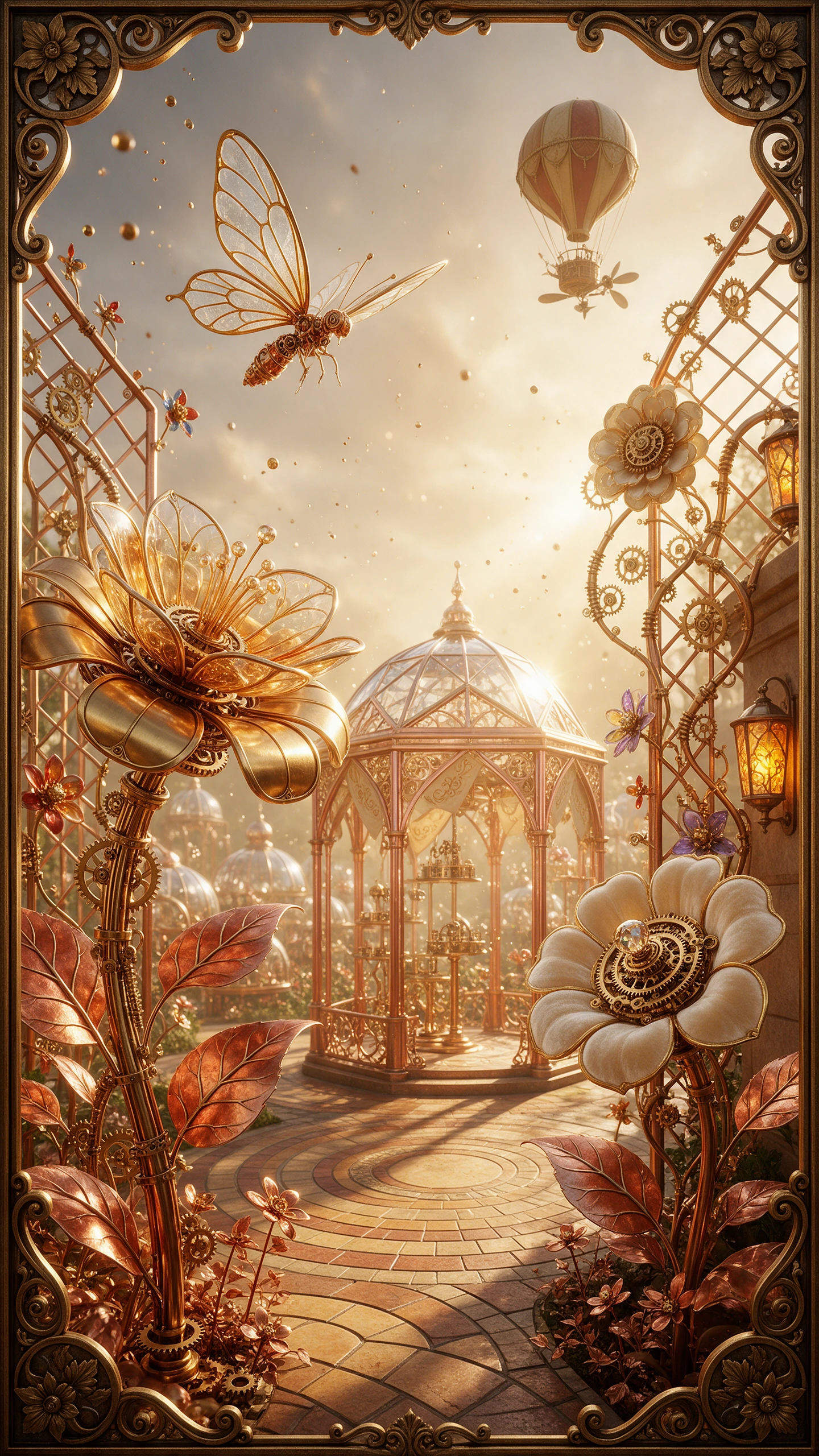
Change the look of your existing footage in Magiclight AI video-to-video. Add your reference video, describe the new style, and select a video model to get started.
Upload a clear reference video that you want to restyle. Use footage that has visible subjects and movements, so Magiclight AI has clear visual details to follow.
Write a prompt of 1500 characters to describe the visual style and camera movement you want. Turn on sound effects if you want audio in your restyled video.
Choose from 20 AI video models to restyle your reference footage. Try the Seedance family models and check how the selected model handles the new style and scene motion.
Watch the result and check the visual style and movement throughout the video. Adjust your prompt when needed, then export in your preferred format and supported resolution.
Yes. Magiclight AI video to video keeps the movements and timing from your original footage. Your clip gets a different visual style without changing the way the action happens.
Videos with a clear subject and good lighting usually give better results. Magiclight AI can handle fast movements too, although dark or blurry footage may not turn out as well.
Yes. As long as you have permission to use their footage. Magiclight AI can change how the video looks, but the rights to the original content still belong to its owners.
Start with the slider in the middle and check your video. Move it lower to keep more of the original details or higher if you want a bigger change.
Magiclight AI supports videos that are 30 minutes long. You can test a short clip first to see how the new style looks before you apply it to the entire video.
Yes. You get free credits when you create a Magiclight AI account, and you don't need a credit card to start. For commercial projects such as paid ads, you'll need a paid plan.

Pick a clip you love and a style you have always wanted to see. Magiclight AI repaints it frame by frame and keeps every move in place.